For those building AI assistants and looking for a convenient knowledge store
The Starting Point: The Storage Problem
When you want to add real product knowledge to your AI assistant, the first question that comes up is: where do you store the documents?
The obvious options are: Notion, Google Docs, Confluence, a folder of PDFs, a custom-built CMS. Each offers something, but each has friction:
- Notion — great for editing, but the API is paid and unreliable
- Google Docs — familiar, but no proper structure or versioning
- Confluence — enterprise-grade, overkill for a small team
- A folder of files — simple, but no editing UI, no access control, no webhooks
I arrived at a different solution: I already had WordPress. And I decided not to multiply systems.
WordPress as a Knowledge Base CMS
WordPress isn’t just a blog. It’s a full-featured content management system with:
- An editor (Gutenberg or Classic) — any manager can write and edit articles without technical knowledge
- Access control — who can edit, who can only read
- A REST API out of the box —
GET /wp-json/wp/v2/postsreturns JSON with content, meta fields, and update dates - Hooks — you can attach an action to post save (
save_post) - Publication statuses — publish, private, draft
The last point turned out to be the key.
Two Types of Content in One CMS
In our implementation, the knowledge base is built from two sources within a single WordPress:
Public pages are real articles on the website: product descriptions, tutorials, FAQs. They simultaneously serve as SEO content for people and as a knowledge source for the AI assistant.
Private pages (status: private) are internal documents, invisible to site visitors but accessible via the REST API with authentication. This includes: sales scripts, objection-handling guides, AI system prompts, and technical specifications.
This separation solves an important problem: the same WordPress is simultaneously a public website and a private knowledge base.
WordPress
├── Public posts/pages → website + AI knowledge base
└── Private pages      → AI knowledge base only
Additionally, an “Exclude from AI” field (a custom checkbox _wifly_no_ai) lets you mark a specific post so it won’t be indexed. This is useful for service pages, drafts, and promotional copy that shouldn’t influence the assistant’s answers.
Sync Architecture
The most interesting part: how content from WordPress gets into the vector database in real time.
WordPress Plugin as Trigger
We wrote a small WordPress plugin (~80 lines of PHP) that hooks into save_post:
add_action('save_post', function($post_id) {
    if (wp_is_post_revision($post_id)) return;
    if (get_post_meta($post_id, '_wifly_no_ai', true)) return;

    // Debounce: no more than once every 2 minutes
    $last = get_transient('wifly_kb_sync_' . $post_id);
    if ($last) return;
    set_transient('wifly_kb_sync_' . $post_id, 1, 120);

    // Webhook to the AI assistant server
    wp_remote_post(KB_SYNC_URL, [
        'body'     => json_encode(['post_id' => $post_id]),
        'headers'  => ['Authorization' => 'Bearer ' . KB_SYNC_SECRET],
        'timeout'  => 5,
        'blocking' => false, // don't wait for a response
    ]);
});
Key details:
blocking: false— WordPress doesn’t wait for the server’s response; the page saves instantly- Debounce via
set_transient— prevents repeated calls during autosave - Secret token — the webhook is protected with Bearer authorization
The Server Receives the Webhook and Updates the Index
On the Node.js/Express server side, the webhook handler:
- Receives
post_id - Fetches the latest content via WP REST API
- Parses HTML → extracts clean text
- Splits into chunks by h2/h3 headings (~800 characters each)
- Vectorizes each chunk using
text-embedding-3-large - Updates records in Qdrant (upsert by
post_id + chunk_index)
app.post('/api/kb/sync', verifySecret, async (req, res) => {
  res.json({ ok: true }); // Respond immediately

  const { post_id } = req.body;
  const post = await fetchFromWordPress(post_id);
  const chunks = splitByHeadings(post.content, 800);

  for (const [i, chunk] of chunks.entries()) {
    const vector = await openai.embeddings.create({
      model: 'text-embedding-3-large',
      input: chunk.text,
    });
    await qdrant.upsert('wifly_kb', {
      points: [{
        id: `${post_id}_${i}`,
        vector: vector.data[0].embedding,
        payload: { text: chunk.text, heading: chunk.heading, post_id, url: post.link }
      }]
    });
  }
});
Result: an editor saves an article — within 5–10 seconds, the AI assistant already knows the updated content.
Vectorization and Search
Embedding Model
We use text-embedding-3-large from OpenAI (3072 dimensions). It’s more expensive than text-embedding-3-small, but the search accuracy is noticeably better — especially for domain-specific technical terminology.
Hybrid Search: Dense + Keyword → RRF
Pure vector search is good at finding semantically similar content, but struggles with exact names — product codes, product names, abbreviations. If a user asks about “flyAir” or a specific pricing plan, the vector might miss.
The solution is hybrid search with Reciprocal Rank Fusion (RRF):
User query
     │
     ├──→ Dense search (Qdrant ANN) → TOP-14 candidates
     │
     └──→ Keyword search (full-text filter) → TOP-10 candidates
                      │
                      ▼
          RRF Fusion (k=60)
                      │
                      ▼
          TOP-7 final chunks → into LLM context
The RRF formula for each document:
score(d) = Σ 1 / (k + rank_i(d))Documents that rank high in both lists get the highest final score. This is a simple and highly effective method with no need to tune weights.
The full-text index in Qdrant is created at server startup (idempotent):
await qdrant.createPayloadIndex('wifly_kb', {
  field_name: 'text',
  field_schema: 'text',
});
What’s Stored in Qdrant
Each chunk is a point in vector space with a payload:
{
  "id": "1847_2",
  "vector": [0.023, -0.041, ...],  // 3072 floats
  "payload": {
    "text": "flyAir is a device for passive MAC address collection...",
    "heading": "How the MAC Radar Works",
    "post_id": 1847,
    "post_type": "page",
    "url": "https://wifly.ru/flyair",
    "updated_at": "2026-04-27T11:32:00Z"
  }
}
Chunking by headings matters: it preserves the semantic integrity of each fragment. Mechanical splitting at 800 characters often cuts context at the wrong place.
What Works Well
Frictionless editorial workflow. Managers keep working in familiar WordPress. They don’t know their articles are becoming part of an AI system — it just works.
Live data. Classic RAG with manual file uploads goes stale quickly. Webhook synchronization keeps the index up to date automatically.
Separation of public and private content. One WordPress — two layers: a public website and a private knowledge base. No need to maintain two separate systems.
Full-text + vector search. The hybrid approach closes the blind spots of pure vector search — especially for product names and technical terms.
Pitfalls
save_post fires many times. During autosave, publish, and meta field updates — the hook can fire 3–5 times for a single action. Debounce via set_transient is mandatory.
Private pages require REST API authentication. A plain GET /wp-json/wp/v2/pages won’t return them. You need an Application Password and an Authorization: Basic ... header.
HTML in the content API. WordPress returns HTML, not clean text. You need a parser — we use cheerio on the Node.js side. It’s important to strip shortcodes, scripts, and ad blocks.
Embedding costs. text-embedding-3-large costs $0.13 / 1M tokens. At 800 characters per chunk and 1,000 articles, it’s trivial for the initial load — but keep this in mind for frequent updates to large knowledge bases.
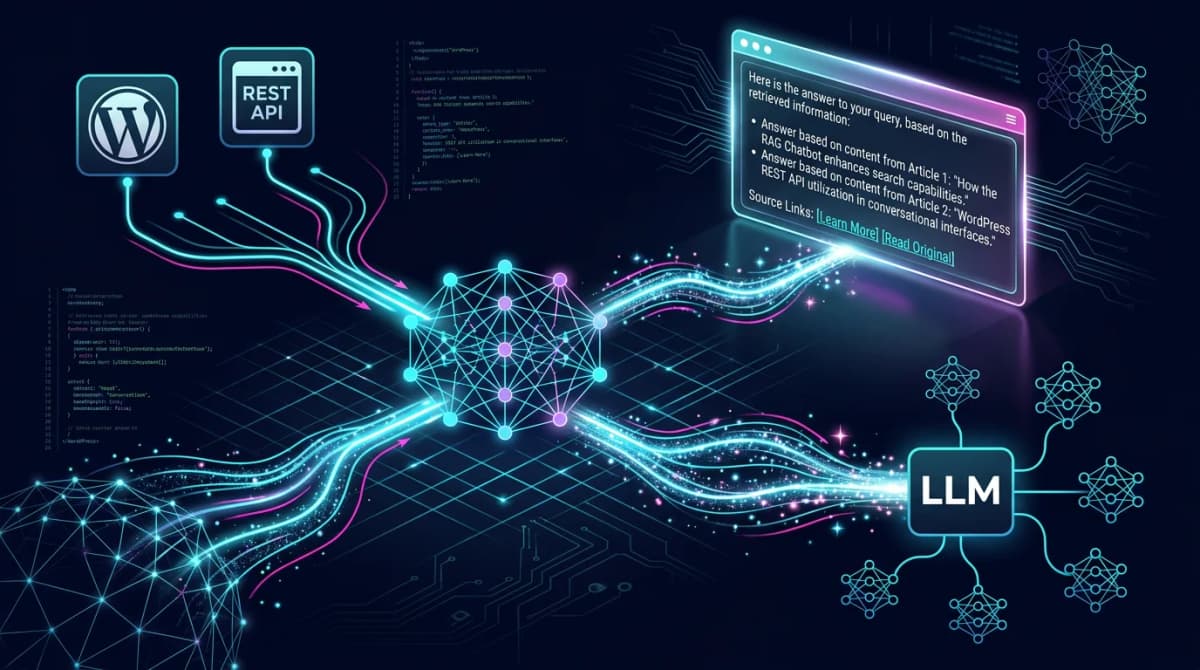
Final Architecture
WordPress (cms.wifly.ru)
├── Public pages  → SEO + KB
├── Private pages → KB only
└── Plugin: save_post → webhook (non-blocking)
          │
          ▼
  Node.js API Server
  ├── Fetch WP content (REST API)
  ├── Parse HTML → clean text
  ├── Chunk by headings (~800 chars)
  ├── Embed (text-embedding-3-large)
  └── Upsert → Qdrant
               │
               ▼
     Hybrid Search (dense + keyword → RRF)
               │
               ▼
     GPT-4o with KB context → user response
Conclusion
If you already have WordPress — don’t rush to find another storage solution for RAG. It gives you everything you need: an editor, access control, a REST API, and hooks for synchronization. Add vectorization via webhook — and your existing CMS becomes a living, self-updating knowledge source for your AI assistant.
The full stack we use: WordPress → Node.js/Express → Qdrant → OpenAI Realtime API — and it works in production.
Interested? The next article will cover how to build a voice assistant on top of this same knowledge base using the OpenAI Realtime API.
Related: Ready to build on this? See the hands-on guide — Build a RAG chatbot on WordPress content, step by step.
Frequently Asked Questions
Can you use WordPress as a RAG backend?
Yes. WordPress works well as the knowledge base layer of a RAG (Retrieval-Augmented Generation) pipeline. You author and structure documents in the familiar WordPress editor, expose them through the REST API, then chunk and embed that content into a vector database. The LLM retrieves the relevant chunks at query time. You get a proper editorial workflow — drafts, revisions, roles, media — without building a custom content tool.
How do you build a RAG chatbot on WordPress content?
The flow is four steps: (1) pull published content from the WordPress REST API; (2) split each document into overlapping chunks; (3) generate embeddings for every chunk and store them in a vector database such as Qdrant; (4) at chat time, embed the user’s question, retrieve the closest chunks, and pass them to the LLM as context. The chatbot answers from your actual product knowledge instead of hallucinating, and every answer can cite the source post.
How is WordPress content chunked and embedded for RAG?
Long posts are split into smaller passages (a few hundred tokens each) with a small overlap so context isn’t lost at the boundaries. Each chunk is converted to an embedding vector by an embedding model and stored alongside metadata — post ID, title, URL, and updated date. That metadata lets you filter retrieval and link answers back to the original WordPress post.
Which vector database works best with WordPress for RAG?
We use Qdrant in production — it’s open source, fast, self-hostable, and has a clean filtering API for metadata. Alternatives like Pinecone, Weaviate, or pgvector work the same way; the WordPress side doesn’t care which one you pick. The key is storing the post metadata with each vector so you can keep the index in sync and attribute answers to a source.
How do you keep the vector index in sync with WordPress edits?
Hook into WordPress save/publish events so that whenever a post is created, updated, or deleted, the matching chunks are re-embedded and upserted (or removed) in the vector store. Tying the sync to the post’s updated timestamp means the knowledge base never drifts from what’s actually published, and editors don’t have to think about the pipeline at all.
Why use WordPress instead of a dedicated vector store or files?
The vector store still does the retrieval — WordPress is the human-friendly source of truth on top of it. Editing Markdown files or raw database rows doesn’t scale once non-developers need to maintain the knowledge base. WordPress gives you a real CMS — versioning, permissions, search, and a REST API — while the vector database handles the math. You get the best of both layers.